
Search This Blog

Friday, June 17, 2016

How to solve Thunderbird Lightning calendar appointments showing as overlapping

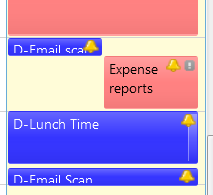
Have you added a 15min appointment next to another one and see those as overlaping appointments on Thunderbird Ligntning calendar? Something like this:

This has been something I could not fix for quite a while until I finally found this article answered by user called "Decathlon" (THANK YOU Decathlon!)

In summary, if you play with zooming factor (CTRL +/-) you may be able to correct that but it had to do with font size, height of events, number of hours displayed etc. That article suggests the following: 

To avoid the problem you have to increase the zoom factor, or you can add some css code in the userChrome.css file in order to reduce the minimum height of the boxes. Without changing the font size, you can try something like:
.calendar-event-box-container {
    margin: 0px !important;
}
but obviously the problem arises again if the zoom factor is too little.
I decided just to change zoom with CTRL + and got this: 

Tuesday, August 4, 2015

Mouse Double Clicks when I only Single Click - Problems

I had this issue on my Logitech Laser wireless mouse M505 model and after of tens of trials and searches to forums this solution from bphillips and confirmation by waigy solved my problem. It does not look it will fix it but it did.

- Turn your Performance Mouse MX OFF
- Remove the battery
- Alternate right and left clicking for roughly 30-seconds
- Unplug the USB receiver and plug into a different USB port (not in a USB hub or extension)
- Replace the battery
- Turn your device back ON

If the issue continues, please try using your mouse while in clean boot mode. To test it you can use the double click speed adjustment in control panel/mouse properties. Set the slider to fast and you should be able to constantly click (up to a few times a second) without opening the folder. Before the fix my mouse was regularly opening this folder with a single click.

Sunday, January 18, 2015

How to solve, Windows 7: Keyboard keeps changing language

If you are like me that need to change the windows keyboard to input a foreign language like Japanese you may have experienced the situation where windows keep changing the default input language into something you don't want. Windows shouldn't change the keyboard layout automatically, but it remembers the individual language settings to every application as long as the application is running. To reset the input language to default, the application (process) must be ended and relaunched, or the input language manually changed.

I have researched this subject and have solved this problem by doing the following:

1. In "Region and Language" - tab-> Keyboards and languages->change keyboard->Default input language -> choose your language/country

Hope it helps.

Monday, November 10, 2014

How to fix: "iPhone is disabled. Try again in xxx.xxx.xxx minutes."

Thanks to an apple community user: Leon

The answer is below: 
You can restore the iPod by going into recovery mode)!
To get into recovery mode, follow my instructions below:
1.Press and hold the power button then slide to power off
2.Plug the usb end of the connecting plug into the computer but unplug the  connector from the iPod
and launch itunes
3.Now press and hold the home button while plugging the connector to the iPod. This should cause it to turn on.
4. Keep on holding the home button until this image shows up on the iPod =>/___sbsstatic___/migration-images/183/18383151-1.png
5. Once the image shows up, you can let go and wait for this notice to pop up in itunes.=>
/___sbsstatic___/migration-images/183/18383151-2.jpg
6.Click ok then on the summary tab of the iPod in itunes, click restore.
7.Now just follow the process of restoring the iPod and you should be able to use it afterwards.
After syncing all your files back, it should be just like before 

Thursday, September 25, 2014

Windows Maximize issue - Trying to maximize a Window but it does not expand to full screen size

This problems has hunted me for years, always on my work computer, I can open an application Window, but when I move it to the right side of the screen it gets reduced automatically. I can modify the size of it by expanding its left, right, top and bottom until it covers full screen but when I try to do that by simply clicking the maximize button (top right corner, next to the cross) the Window does not occupy the complete screen, the right side stops at an imaginary screen border.

This occurs when the window is maximized; otherwise it appears as normal. Again, the work around would be to re-size the window using sides arrows.

In my mind, this was a Microsoft Windows issue, but I finally find the solution and it seems it has nothing to do with Microsoft.

At least in my case, the problem was with an application Pidgin. The docked Buddy List, even when not showing up, was taking that screen space and blocking the Window from that area. You just need to play with Pidgin a little, (remove the mark on Show buddy list a couple of times did the job for me) Of course if you remove Pidgin it also works but in my case this was not an option.

Special thanks to the user Tinjaw that replied on 

Wednesday, July 2, 2014

Forgot Windows 7 Password, but can still login using fingerprint authentication, how to change your password

The title describes my problem, for some reason my password was not working, so I had to reset it. I could still log in as ADMIN but I was not able to reset the password since the windows GUI would ask me for current password in order to change it!

I knew that I could create another admin account and then use that account to reset my work account. This is a good workaround I have used in the past. The problem is that my corporate windows version forces me to use some encription and if I did that reset from another account I would lose the encripted files!

I am glad that I managed to find the answer for my problem here with the answer I have used reproduced below. Just notice that I recommend you not to use * since if you do so, your new password will not show on your display while you type. This may be a need for crowded offices but it may create problems in case you mess up with your typing. 

You can set the password through the command prompt without knowing the previous password. Here's how:
  1. Open an administrative command prompt (Right-click Command Prompt and Run as Administrator).
  2. Type set username in the command prompt. You will see your username (useful if you don't know what it is from the OEM, etc.)
  3. Type net user currentusername newpassword (replace currentusername with the username output on step 2 and newpassword with the newpassword you want to use). That is all. 
Or in case you are concerned to show your password on your display, skip step 3 above and follow the steps below: 
  1. or Type net user currentusername * (replace currentusername with the username from step 2) 
  2. Type in your new password and press enter. You won't see any stars or anything as you're typing - but it is typing! If you mess up you can press ctrl + c to cancel or press Backspace enough times to delete what you've typed. If you cancel, just type in the command from step 3 again.
  3. Type in the same password again and press enter.
If it worked you should see The command completed successfully.

Wednesday, June 11, 2014

Mozilla's Thunderbird - How to change font sizes

If you are like me and have been in the industry for a while, you may be getting to a point that you need to change font sizes in order to avoid using glasses, or adapt to the size of your display of the day!
I have been struggling with that for years and I have used the recommendations found in the Mozilla sites to modify the UserChrome.css files to adjust font size, but this article here: Bad Eyesight - Thuderbird helped me to find the final solution, just an add on that can be used on Thunderbird or Firefox! Theme Font & Size Changer add on! For Thunderbird, just download the add on and then drag and drop that file on Thunderbird  Add On page (go to Tools - AddOn). This will add an a Theme Font & Size Change on the Tools menu and there you can adjust your font sizes!

Labels

problems (8) windows 10 (7) Windows 7 (6) thunderbird (5) iPhone (3) Excel (2) MacOS (2) calendar (2) chrome (2) lightning (2) mac os (2) problem (2) tips (2) Apple on windows (1) Bluetooth (1) Costco (1) Disk Incentory X (1) Excel tips (1) GrandPerspective (1) MS Office (1) Mac (1) MacMini (1) Magic trackpad (1) Microsoft Compatibility Telemetry (1) N900 (1) Netgear (1) Office 2007 (1) OneNote (1) TWS (1) ThunderBrowse (1) Timezone (1) Trello on Thunderbird (1) Ventura (1) WNDR4500 (1) Web (1) WebPG (1) Window Maximize (1) Windows XP (1) adobe (1) associations (1) auto-complete (1) autocomplete (1) cell color (1) changes (1) conditional format (1) consolidation (1) create text file (1) day of the week (1) disabled (1) dish (1) dish network (1) disk (1) embedded document (1) excell (1) extension (1) file utilities (1) finger (1) fingerprint (1) firefox (1) folder consolidation (1) font (1) font size (1) forgot password (1) google sheets (1) high cpu usage (1) i7-TWS (1) iOS 10 (1) iPhone 5 (1) iPhone device (1) issue (1) itunes (1) japanese (1) java (1) keyboard (1) language (1) lock screen (1) log in problems (1) login problems (1) lower bill (1) magic mouse (1) mail (1) maximize (1) media server (1) mouse drifting (1) mouse problems (1) new file (1) new text file (1) pdf (1) picture management (1) pictures (1) pivot table (1) portege z30-a (1) reading japanese (1) recovery (1) reduce (1) reference same cell (1) rename device (1) rikai (1) search (1) security (1) snipping (1) snipping tool (1) spotlight (1) telemetry (1) text file on mac (1) time (1) todo (1) toshiba (1) treemaps (1) unique values (1) update (1) utilities (1) weekday format (1) word (1) worksheets (1)