Search This Blog

Wednesday, March 22, 2023

XML files on Excell, the easy way

 If you have an XML data file and you would like to read that on excel just follow those steps below. 

Yes, you can open and work with XML files in Microsoft Excel. Excel can import XML data and display it in a structured table format. To open an XML file in Excel, follow these steps:

  • Open Microsoft Excel.
  • Click on the "File" tab in the top-left corner.
  • Choose "Open" from the menu.
  • In the file browser dialog, navigate to the folder where the XML file is stored.
  • In the "File type" dropdown menu (usually located at the bottom-right corner of the file browser dialog), select "XML Files (*.xml)".
  • Choose the XML file you want to open and click "Open".

Excel will import the XML data and display it in a structured table format. You can then work with the data in Excel, such as filtering, sorting, or applying formulas.

Please note that Excel may not correctly interpret or display very complex XML files or those with specific formatting requirements. In such cases, you may need to use specialized XML editing software or work with the XML file programmatically using a programming language such as Python or Java.

If you then would like to manipulate that data you can follow the instructions below: 

If you open the file on Google Sheets you can use the QUERY command.


In Excel the equivalent of this Google sheets command: "=QUERY(TabName!A:R,"SELECT N,O,P,Q,R,H")"

In Microsoft Excel, you can use Power Query to achieve similar functionality to Google Sheets' QUERY function. Power Query is a data transformation and analysis feature that allows you to import, manipulate, and analyze data from various sources.

To replicate the Google Sheets QUERY command in Excel, follow these steps:

  • Click on the "Data" tab in the Excel ribbon.
  • In the "Get & Transform Data" group, click "Get Data" and then choose "Combine Queries" > "Append Queries as New".
  • In the "Append Queries" window, choose "Two or more tables" and click "Add Table".
  • Choose the source sheet (in your example, it's "TabName") and click "OK".
  • In the Power Query Editor, select the columns you want to include in your query (in your example, columns N, O, P, Q, R, and H).
  • Click the "Home" tab in the Power Query Editor, and then click "Close & Load".

Excel will create a new sheet with the selected columns from the source sheet. Note that Power Query in Excel does not use the same QUERY language as Google Sheets, and you may need to learn the Power Query interface to manipulate and filter the data further.


Keep in mind that Power Query might not be available in all versions of Excel. It is available in Excel 2010 Professional Plus and later versions, as well as in Office 365.

Monday, June 13, 2022

How to change default "Open with:" settings on a Mac

 I I got this answer from here

==========================================

Choose a file that has the same extension as the other files that you extensively use and right click on it. Example: .mov extension (video)

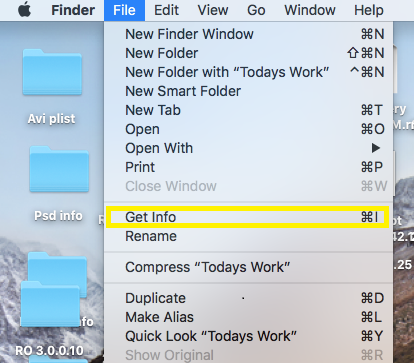
  • Select “Get Info” from the list shown in the pop-upget info
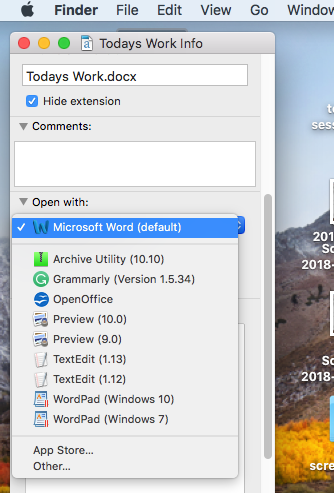
  • Choose Open With and expand the drop down to choose an app
    open with
  • Select Change All… option under Use this application label box
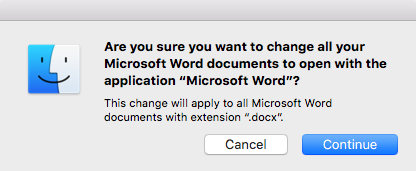
  • Finally a pop-up asking “Are you sure you want to change all similar files to open with the application” comes up, select continue to save the settings
    are you sure
  • Now the next time you open a file, it is opened using the default application of your choice

 ===========

Simple but it required me multiple searches to find the right answer. 

Thursday, March 17, 2022

How to change cell color based on day of the week - Google Sheets - Conditional format based on day of the week

I was looking for a way to change the color or a cell based on the date of the week reflected on that cell or another cell. In my case I was trying to make 2 different colors for Monday and Thursday. 

I found a discussion here that gave me hints into what I found is the best answer. See below. 

Use the function weekday(cell)=? (1 for Sunday, 2 for Monday, .....7 for Saturday). Detailed description is below (thanks to the answer by Emerson Peters on link above): 

===================================

Say the column of dates is A. Select it, Format > Conditional formatting..., Custom formula is and enter:

=weekday(A1)=1  

Choose the formatting required.

The final 1 above is for Sunday, other days follow in numeric order.


Repeat for the other required formats, adjusting the 1 as necessary for other days of the week.

Because these rules do not conflict (each date is only one specific day of the week) the order in which the rules are added (with "+ Add another rule") does not matter.

===================================


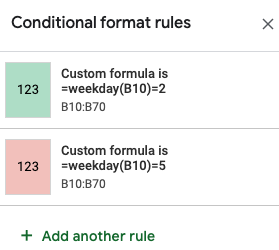
I have used this process and created Conditional Format rules to make Mondays Green and Thursdays Pink. As below see results and conditional format formulas:


Results: 


Conditional format rules:


I hope this helps you and it did to me. 

Monday, May 17, 2021

Apple Magic Trackpad 2 or Magic Mouse or Apple Keyboard on Windows 10

 I got my hands into a 2nd hand Apple Magic Trackpad 2 and really enjoyed using it on my Mac. For work I need to use a windobesides using it on my Mac I also would like to use it on my Windows 10 laptop. 

Initially, I could not make it work wirelessly but if you use the charging usb-lighting cable and install drivers following instructions below that I have found here

Here are the steps:

1) If you've already added your Magic Mouse as a Bluetooth device in Windows 10, remove it before beginning.

2) Download Apple's Bootcamp Support Software here: https://support.apple.com/kb/DL1837?viewlocale=en_AM&locale=en_AM

3) Unzip the file and navigate to the following folder:

bootcamp5.1.5769\Bootcamp\Drivers\Apple

4) Double-click on the file AppleWirelessMouseDriver64.exe. This will install the proper driver for the Magic Mouse. (also Install all the drivers you think you need, for magic mouse, keyboard and pad)

5) Add your Magic Mouse under Windows 10 Bluetooth devices.

Wednesday, February 19, 2020

Thunderbird View "Day Starts at:" option not working - Toggling between Inbox and Calendar tabs causes calendar to always scroll back to starting at midnight

I have recently being forced to update to Thunderbird 68.4.2 on my workng machine (and lost access to Rikaichan....but this is the topic for another posting) and noticed that everytime I moved between Inbox or any other tab back to the calendar view last view I had on my calendar was lost!

I was trying to fix this behaviour by going to Tools->Options->Calendar->View->Day starts at:
and then setting the start time to 7am so I could see something like this:


However the view would always be different than that!

I found the following references to this bug here and here but no good fix.

Some of the answer you can find on the first link:

Thanks for reaching out. I think thinks are different in 68.0. The start time refers to when the work day starts (which is time range with different shading). There is no setting view start time.

and

You're right, there's no setting for the start time - it's midnight. But I note that the scroll bar position in Day or Week view is remembered between TB restarts, so that if the window was scrolled to show 8:00 a.m. at the top at TB exit, it window looks the same when TB is restarted (TB 60 & 69b). Does that at least work on your system?


One of the recommended fixes was to scroll the view as you wanted and then close Thunderbird, so that setting would be saved on session.json but other viewers tried and it did not work.

I think I found the problem, if you made the changes but goes back to any other Thunderbird page (like inbox) before it closes the settings for the view are lost. What I tried and worked for me was set the view on the calendar tab and then close Thunderbird from that view. This has reset the default view to my last one!

I just wish Thunderbird would have this fixed instead of having us need to create work arounds for something so trivial.

Thursday, February 6, 2020

Opening an url as a Thunderbird Tab - Web Apps on Thunderbird - Ex. Trello on Thunderbird

I got this idea after searching for years for a replacement to Thunderbrowse. Or WebPG add on.

I then noticed that after installing add-on, some add-ons would open a web-page as a tab and thought that maybe I could modify one of the about.config variables to open a tab with webpages. It did not work!

I then searched for an user based setup I could create to open such a page, on that process I was studying configuration files information found on the page below:
https://www-archive.mozilla.org/support/thunderbird/edit

After a lot of searches I found this page on Content_Tabs:
https://developer.mozilla.org/en-US/docs/Mozilla/Thunderbird/Content_Tabs

I then finally got the ideal below. It is not perfect but it does open  a page choose by user. I wish I was a little more "technically savy" to really know how to improved this but this is how far I went, just follow steps below:


1) First Open Scratchpad on Thunderbird by pressing (Shift-F4)


2) Copy and paste the content below to the bottom of of the scratchpad,
Components.classes['@mozilla.org/appshell/window-mediator;1'].getService(Components.interfaces.nsIWindowMediator).getMostRecentWindow("mail:3pane").document.getElementById("tabmail").openTab("contentTab", {contentPage: "https://tech-me-out.blogspot.com/2020/02/opening-url-as-thunderbird-tab.html"});

3) Click run on the menu of the Scratchpad, it will open this page as a tab in your browser


4) After testing this, you can then replace this part of the line you added: "https://tech-me-out.blogspot.com/2020/02/opening-url-as-thunderbird-tab.html"  by "your own url address" and it will be opened as a tab on your Thunderbird.

As you can see, some web apps like Trello may work too:


I hope it works for you!


Labels

problems (8) windows 10 (7) Windows 7 (6) thunderbird (5) iPhone (3) Excel (2) MacOS (2) calendar (2) chrome (2) lightning (2) mac os (2) problem (2) tips (2) Apple on windows (1) Bluetooth (1) Costco (1) Disk Incentory X (1) Excel tips (1) GrandPerspective (1) MS Office (1) Mac (1) MacMini (1) Magic trackpad (1) Microsoft Compatibility Telemetry (1) N900 (1) Netgear (1) Office 2007 (1) OneNote (1) TWS (1) ThunderBrowse (1) Timezone (1) Trello on Thunderbird (1) Ventura (1) WNDR4500 (1) Web (1) WebPG (1) Window Maximize (1) Windows XP (1) adobe (1) associations (1) auto-complete (1) autocomplete (1) cell color (1) changes (1) conditional format (1) consolidation (1) create text file (1) day of the week (1) disabled (1) dish (1) dish network (1) disk (1) embedded document (1) excell (1) extension (1) file utilities (1) finger (1) fingerprint (1) firefox (1) folder consolidation (1) font (1) font size (1) forgot password (1) google sheets (1) high cpu usage (1) i7-TWS (1) iOS 10 (1) iPhone 5 (1) iPhone device (1) issue (1) itunes (1) japanese (1) java (1) keyboard (1) language (1) lock screen (1) log in problems (1) login problems (1) lower bill (1) magic mouse (1) mail (1) maximize (1) media server (1) mouse drifting (1) mouse problems (1) new file (1) new text file (1) pdf (1) picture management (1) pictures (1) pivot table (1) portege z30-a (1) reading japanese (1) recovery (1) reduce (1) reference same cell (1) rename device (1) rikai (1) search (1) security (1) snipping (1) snipping tool (1) spotlight (1) telemetry (1) text file on mac (1) time (1) todo (1) toshiba (1) treemaps (1) unique values (1) update (1) utilities (1) weekday format (1) word (1) worksheets (1)